
This article goes through all of the settings to properly brand your Qualifi account for the most seamless candidate experience.
To begin customizing your brand, follow the steps below:
NOTE: If you do not see this option, you do not have the permissions to do so. Please contact your admin or service@qualifi.hr for assistance.
- Log in to your Qualifi account.
- Click the Settings tab on the bottom left side of your dashboard.
- In the Customization tab, click Branding.
- Here you may choose to customize your default brand, which will then be the default for all teams not using custom branding, or you may choose to customize the brand of a team.
- To customize your default branding click the three dots next to your organization branding and click Edit Branding.

- To customize only your teams branding, be sure you're in the correct team, and click Get Started next to team branding.
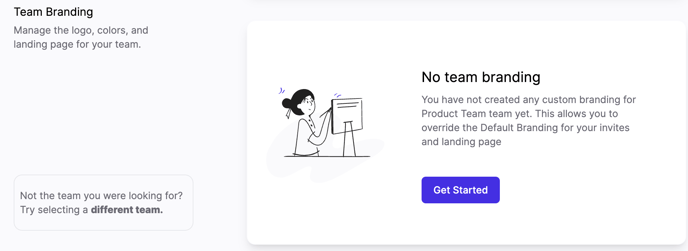
- To customize your default branding click the three dots next to your organization branding and click Edit Branding.
- When editing you will be able to change:
- Public Display Name
- If your organization's public name is different than the name within Qualifi, you should update the display name to reflect what candidates are expecting.
- Company Logo
- Select a .jpeg or .png file that is at least 100 pixels x 100 pixels and upload here.
- Brand Color
- This is where you can set your company's accent color that will appear in all candidate communication, including the landing page before they begin the interview. The # text box is for the exact 6-digit hex number of your company's logo or color scheme. If you do not know the hex color and would like to find it, we recommend using the ColorPick Eyedropper Google Chrome extension.
- Button Color
- This is where you can set the color for buttons and action items. It inherits your brand color by default, but you can change the color with a 6-digit hex number.
- Background Image
- This will be used for the candidate landing page. We recommend using a high resolution image that shows off your team and brand. The image should be 732 x 208 or larger.
- Public Display Name
- Once finished you can preview how the candidate landing page will look in both mobile version and through a web browser.
- Click Save Changes on the top right corner when finished.
If you have any questions or need assistance, please email service@qualifi.hr.