
You can personalize the invitation message for SMS and Email invites across your entire organization.
To customize your interview invite message, follow the directions below:
NOTE: If you do not see this option, you do not have the permissions to do so. Please contact your admin or service@qualifi.hr for assistance.
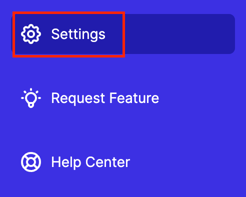
- Log in to your Qualifi Account and click Settings on the bottom left corner of your screen.
- In the Customization tab, click Messaging Groups.
- Click the three dots next to Interview Messaging Group and click Edit.

- There you can rename the messaging the group, but it's not required. Click Continue.
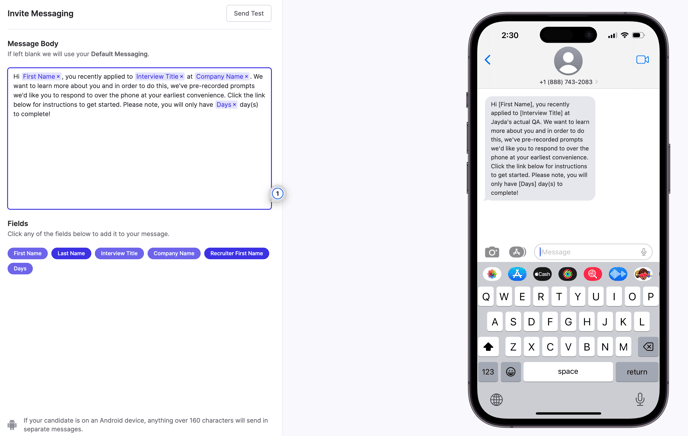
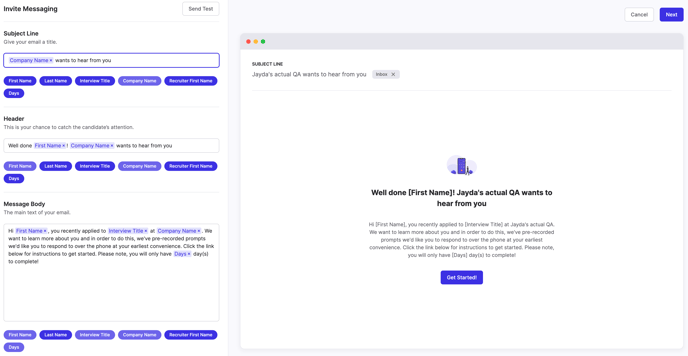
- There you can separately edit the SMS message and Email invite to your liking.
- When editing the SMS message the page will look like this:
- When editing the Email Invite the page will look like this:
- When editing the SMS message the page will look like this:
- Click Next on the top right once you're done editing. Additionally, you can always revert to Qualifi's default message if needed.
- Click Publish on the top right.
Note: The preview and test invite will display a static number for the expiration timeframe. This will not be the case when invitations are actually sent to a candidate.
If you have any questions or need assistance, please email service@qualifi.hr.