
Every Qualifi interview has an intro and outro message, but you can record your own messages for a more seamless candidate experience!
To customize your audio intro and outro, follow the steps below:
NOTE: If you do not see this option, you do not have the permissions to do so. Please contact your admin or service@qualifi.hr for assistance.
- Log in to your Qulifi account.
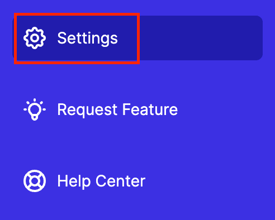
- Click the Settings tab on the left side of your dashboard
- In the Customization tab, click Audio Customization.
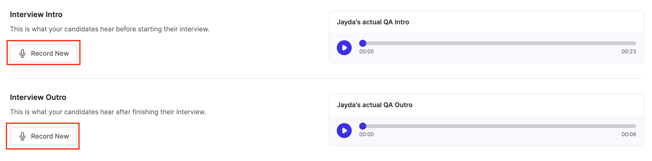
- There you will see two Record New buttons for both the interview intro and interview outro message.
- For the Intro messaging, some good information to include is:
- A reason why you're using this interview method
- This interview will record their responses to your questions
- They'll hear each question followed by a beep
- They'll answer then push pound to go to the next question
- Your team will be notified when the interview is completed and will follow up
- When you're ready to get started, press the pound key
- For the Intro messaging, some good information to include is:
- There you have a reference script that you can edit to your liking and info to include in your script. Click the purple microphone button to immediately start recording.
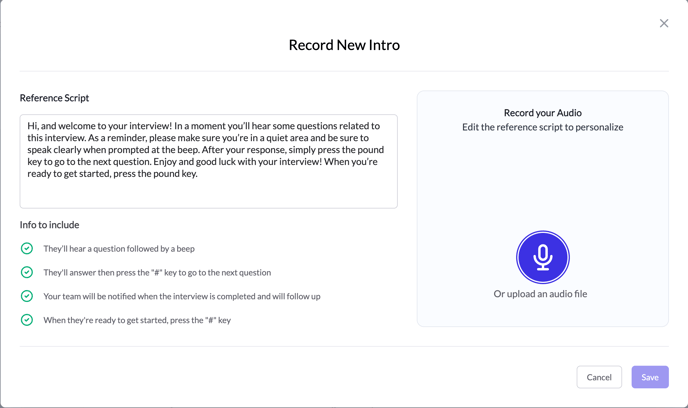
- Once you're done recording you will be able to listen back to recording and record again, if needed. Click Save once you're satisfied with the recording.
NOTE: You can always reset the audio messaging to the Qualifi default recordings
If you have any questions or need assistance, please email service@qualifi.hr.