
This article will explain how to customize your instruction messages when enabling Question Replay in your settings.
To customize your Response and Replay instruction messages follow the steps below:
- Log in to your Qualifi account and be sure to have Question Replay enabled in your settings.
- In Settings, click Customization and into the Audio Customization tab.
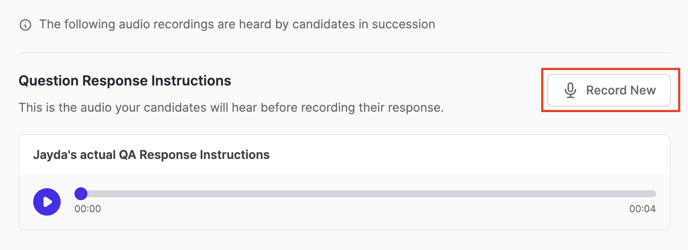
- Scroll down to your "Question Response Instructions" and "Question Replay Instructions." In order to customize and record your "Question Replay Instructions" you must record the "Question Response Instructions" first.
- Next to your "Question Response Instructions" click Record New.
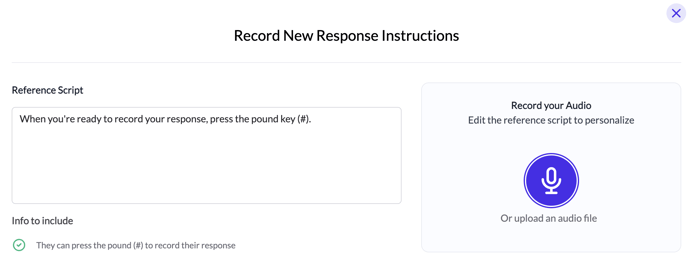
- There you will be provided with a reference script that you may edit to your liking, just be sure to include the info mentioned on that page. Click the purple microphone to start recording immediately.
- Click the red stop button once finished. To re-record click Record Again, if needed.
- Once done, click Save.
- Now that your "Question Response Instruction " have been recorded you'll be able to record your "Question Replay Instructions".
- Next to your "Question Replay Instructions", click Record New and repeat steps 5-7.
If you have any questions or need assistance, please email service@qulifi.hr