Don't have time to record your questions? Hate the sound of your voice? Try generating your audio from text!
To generate your audio from text, follow the steps below:
- Log in to your Qualifi account and be sure you are in the Team you would like your question to live in.
- Click on the Questions tab located at the left side of your dashboard.
- Click the purple New Question button on the top right of your screen.
- Select Generate Audio from Text, click Next.
- A pop up will appear with tips and tricks for how to make your audio sound best.
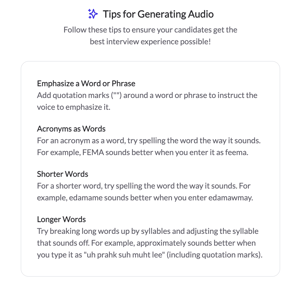
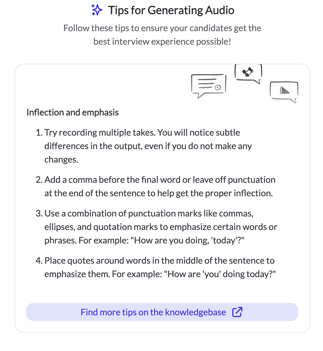
- After reading the tips, preview each narrator's voice and choose which you feel sounds best. Click Next.
- Create a question title, and write the script you'd like the narrator to say. Click Create.
- The generated question will appear on the right. There you can listen to the question and change the question, if needed, using the tips in Step 6 (To see those steps again click Need Help on the top right). You can choose to change the Narrator by clicking Change next to the narrator's name.
- All the different generated questions will appear on the right side for you to choose from.
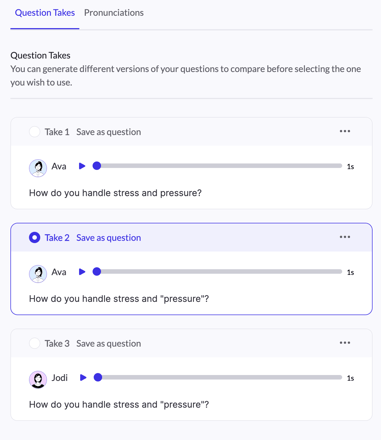
- You can create up to ten takes at a time, if you need to create more click the three dots next to any version and click Delete.
- Select your favorite take, click Save or Save and Create More to create another question. Repeat steps 7-11 until you've created as many questions as you need.

Pronunciation
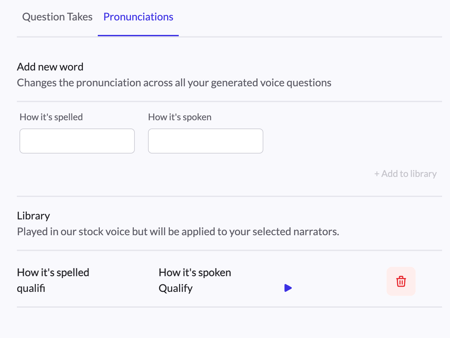
When creating questions you can create your own Pronunciation library. When creating a pronunciation it will be saved for everyone in your Team. You can keep certain words in your bank so that it will always be said correctly when creating any question with that word. Example: Qualifi to Qualify
To add a word to your pronunciation library click Pronunciations, type in the original spelling of the word and then how it's spoken and click Add to library.