
This article explains how to record a question in Qualifi.
To record an Audio question on Qualifi follow the steps below:- Log in to your Qualifi account and be sure you are in the Team you would like your question to live in.
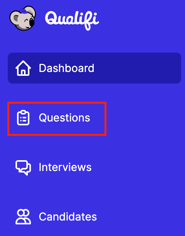
- Click on the Questions tab located at the left side of your dashboard.
- Click the purple New Question button on the top right of your screen.
- Select Record or Upload Audio and click Next.
- Create a question title, create a script if needed, and click the purple microphone button.
- Recording will start immediately after you click the purple microphone. Click the red stop button once you've finished recording.
- If you want to re-record, click the retry arrow and repeat Step 6.
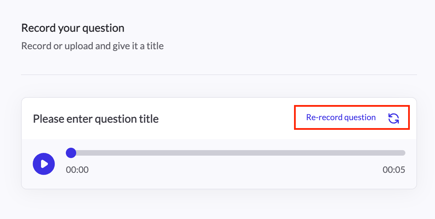
- If you want to re-record, click the retry arrow and repeat Step 6.
- Once you are happy with the recording, click Save and your question will populate in your questions inventory.
If you have any questions or need assistance, please email service@qualifi.hr.