
Reviewing candidates that just aren't the right fit? Don't leave them hanging, send out a rejection email!
Single Rejection Email
Follow the steps below to send out a single rejection email:
- Log in to your Qualifi account.
- Click Candidates on the left side of your Dashboard.
- Click into a Candidate's Interview.
- After reviewing the candidate, if you feel the candidate is not the right fit, click Send Rejection on the top right hand corner of the screen.
- A pop-up will appear with a preview of the messaging that will be sent to the Candidate.If you would like to Edit the wording click Edit Template.
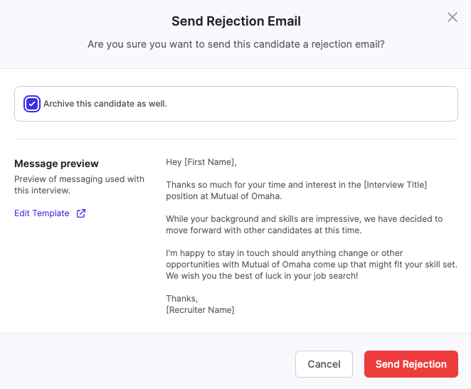
- Choose if you'd like to automatically archive the candidate's Interview. Once you've decided, click Send Rejection.
Mass Rejection Emails
Follow the steps below to send out mass rejection emails:
- Log in to your Qualifi account.
- Click Candidates on the left side of your dashboard.
- Select all the candidates you would like to send a rejection email to.
- Click Send Rejection.

- A pop-up will appear with a preview of the messaging that will be sent to the Candidate.If you would like to Edit the wording click Edit Template.
- Choose if you'd like to automatically archive the candidate's Interview. Once you've decided, click Send Rejection.
View or Edit Default Messaging for Rejection Emails
To view or edit the messaging of your Rejection Emails follow the steps below:
- Log in to your Qualifi account
- Click Settings on the left side of your dashboard.
- Under the Customization tab click Messaging Groups.
- Click the three dots next to the Default Interview Messaging Group and click Edit.
- Click Continue twice.
- Click Edit next to Rejection Email.
- Here you can view or edit the messaging for Rejection Emails. Once finished click Next.
- If you edited the messaging, click Publish.
If you have any questions or need assistance, please email us at service@qualifi.hr