
Scheduling just got easier with our in-app scheduling tool, Meetings!
NOTE: Be sure to have your calendar linked before creating a meeting.
To create a meeting follow the steps below:
- Log in to your Qualifi account.
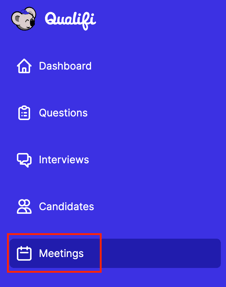
- Click Meetings on the left side of your dashboard.
- Click the purple New Meeting button on the top right corner.
- Here you will fill in your Meeting detail:
- Meeting Title
- Event Name
- Meeting Location (In-person, Web Conferencing, Phone call, or Video Meetings*) Also note: Once a Meeting location is chosen it cannot be edited.
- Address (If In-person)
- Meeting Notes
- Click Next on the bottom right.
- There you can select a messaging group and see a preview of what the candidate would see. Click Next.
- Choose which Users you'd like to attend the Meeting. Candidates will only see time slots that are available on all attendees' calendars when booking. Click Next.
- There you can change the Attendees availability as needed, choose how far out the candidate can schedule their Meeting and choose the duration of the Meeting.
- Click Save.
*If Video Meetings is greyed out you do not have access to this feature, please contact service@qualifi.hr to upgrade.
If you have any questions or need assistance please email service@qualifi.hr