
This article breaks down how to create an interview in Qualifi.
Creating an Interview
To create an interview follow the steps below:
Note: To begin creating an interview you must first have your questions created.
- Log in to your Qualifi account and be sure you are on the Team where you want the Interview to live.
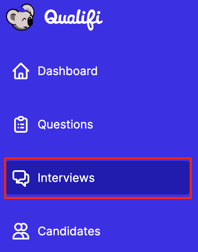
- On the left side of your Dashboard, click Interviews.
- Click New Interview on the top right corner of your screen.
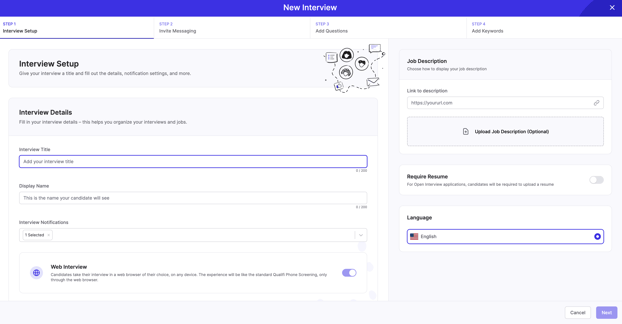
- Here you will be able to title your interview (this is for internal use), have a display name (this will be the title candidates will see) grant candidates access to a web interview, link the job description, require a resume and choose a language. Once you've completed those interview details, click Next.
- Select the messaging group you would like to send to the candidate. There you will be able to see a preview of the message in SMS and through email. Click Next.
- Select any audio or survey questions from your question bank. Click Next.
- Add any keywords you'd like to hear from candidates. Click Save.
If you have any questions or need assistance, please email service@qualifi.hr.